> ## Documentation Index
> Fetch the complete documentation index at: https://statsig-4b2ff144-mintlify-java-core-statsig-options-migrati.mintlify.site/llms.txt
> Use this file to discover all available pages before exploring further.
# Organization Settings & Administration
Organizations and their related features are for Enterprise contracts only. Please reach out to our [support team](mailto:support@statsig.com), your sales contact, or via our Slack channel if you need to enable Enterprise features as you use Statsig.
## Creating an Organization
Statsig creates an organization for companies with an Enterprise contract.
When you move a project to the organization,
* All existing **members** will receive an invitation to join the organization
* All existing project **administrators** will remain the same
* The project will be added as **Open** i.e. any registered Statsig user with the same email domain as the project owner will have access to the project; you can change this setting in the **Project Settings** tab
If you don't move a project to the organization, you may lose access to it as it will be archived.
## Managing Organizations
Creating an organization will automatically make you the organization's **Owner** and **Admin**.
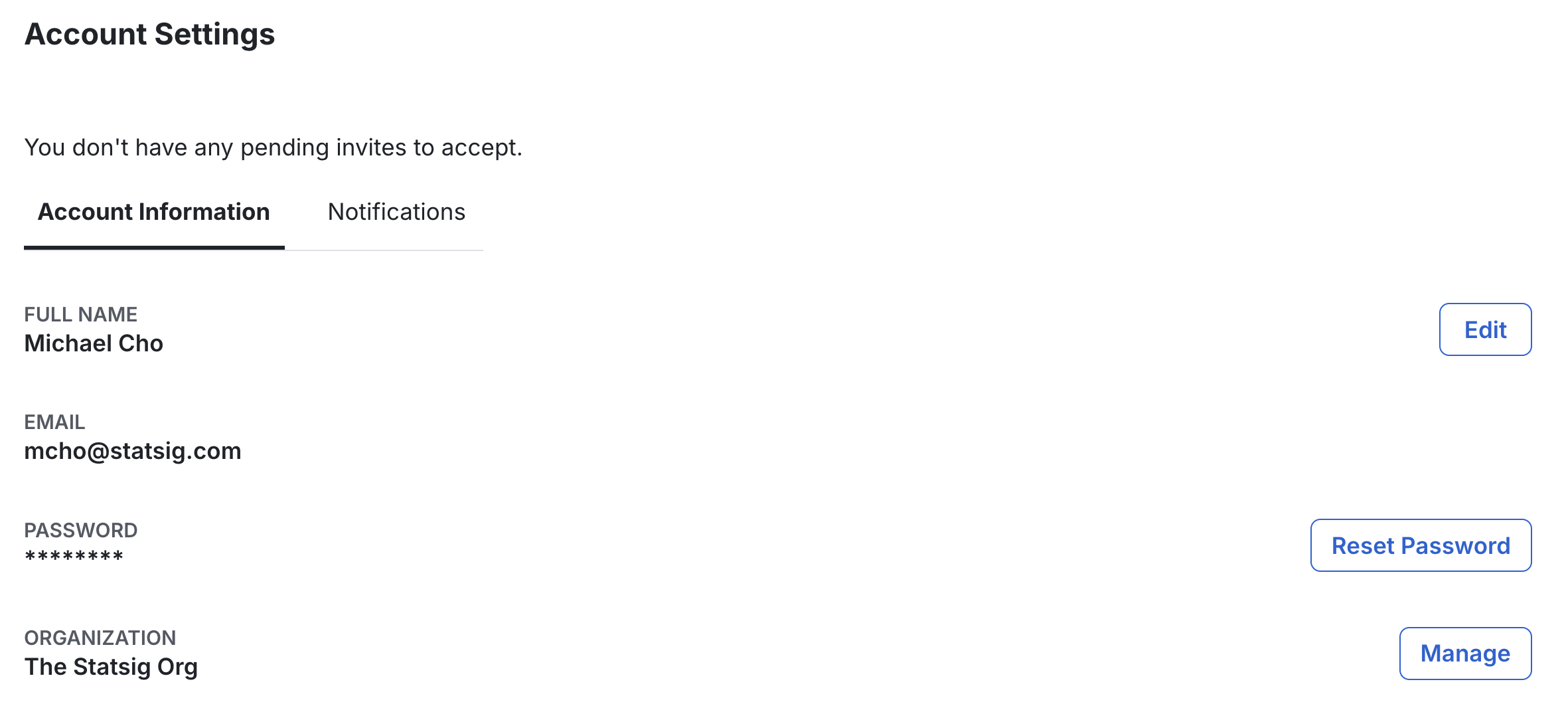
You can view your Organization page by navigating to [Account Settings](https://console.statsig.com/account_settings) in the settings tab and clicking on **Manage** next to your organization.
 #### Organization Information
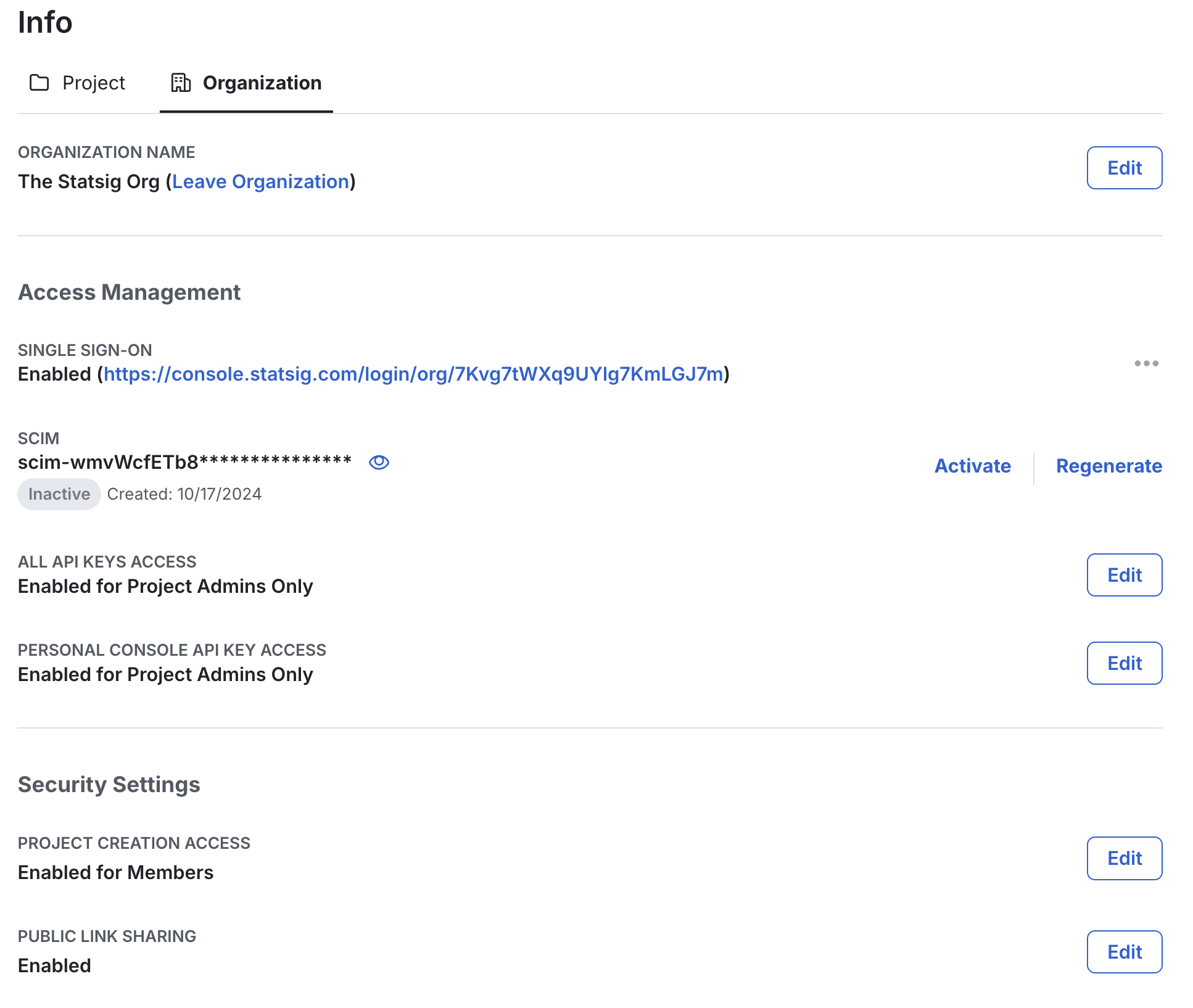
Your organization's **Info** sidebar includes the organization's name, SSO configuration, and other settings on access management and security settings.
As the organization's **Admin**, you can enable or disable SSO for all projects in the organization from this one place.
#### Organization Information
Your organization's **Info** sidebar includes the organization's name, SSO configuration, and other settings on access management and security settings.
As the organization's **Admin**, you can enable or disable SSO for all projects in the organization from this one place.
 #### Organization Members
All members in the organization will be able to view all current members in the organization from [Members Settings](https://console.statsig.com/settings/members).
As the organization's **Admin**, you can also manage its membership by:
* Promoting members to the organization's **Admin**
* Removing members from the organization
* Managing invitations including sending, viewing, and canceling invitations as well as tracking all pending invitations
#### Organization Members
All members in the organization will be able to view all current members in the organization from [Members Settings](https://console.statsig.com/settings/members).
As the organization's **Admin**, you can also manage its membership by:
* Promoting members to the organization's **Admin**
* Removing members from the organization
* Managing invitations including sending, viewing, and canceling invitations as well as tracking all pending invitations
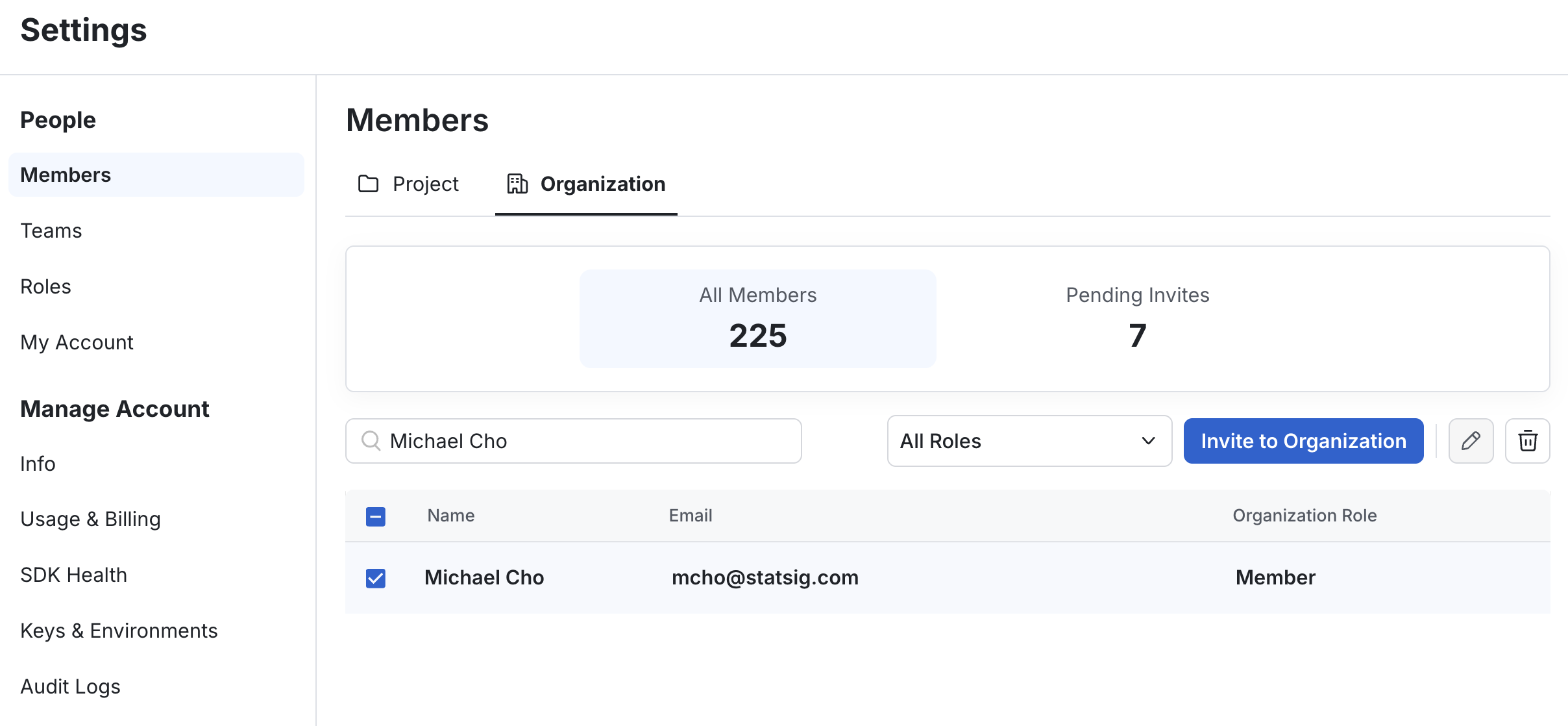 To change the member's roles within the organization or remove member from the organization, check the member's name from the checkbox in the list and click one of the icons at the top right of the list.
## Managing Projects
Members of an organization will be able to view all public projects in the organization.
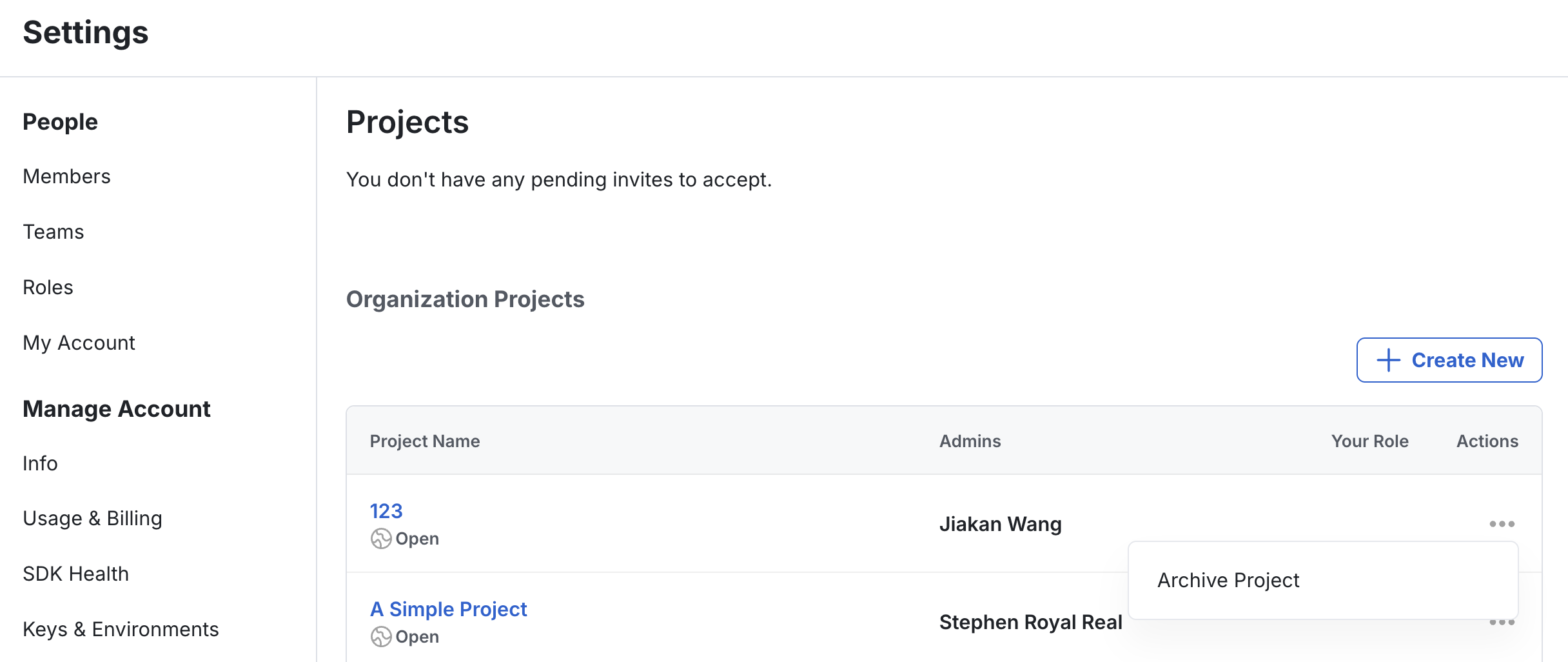
As the organization's **Admin**, you can view every project in the organization as well as **archive** the project if it's no longer necessary.
To change the member's roles within the organization or remove member from the organization, check the member's name from the checkbox in the list and click one of the icons at the top right of the list.
## Managing Projects
Members of an organization will be able to view all public projects in the organization.
As the organization's **Admin**, you can view every project in the organization as well as **archive** the project if it's no longer necessary.