> ## Documentation Index
> Fetch the complete documentation index at: https://statsig-4b2ff144-mintlify-java-core-statsig-options-migrati.mintlify.site/llms.txt
> Use this file to discover all available pages before exploring further.
# Create a Safeguard
> Learn how to create a Safeguard on one or multiple targeting rules within a Feature Gate to monitor regressions and automatically take action when alerts fire.
You can create a Safeguard on one or multiple targeting rules within a Feature Gate. To create a Safeguard on a rule, follow the steps below:
1. Go to a Feature Gate's **Setup** tab
2. Pick a targeting rule for which you want to monitor regressions
3. Click the three-dot (...) menu and choose **'Safeguard Rule'**
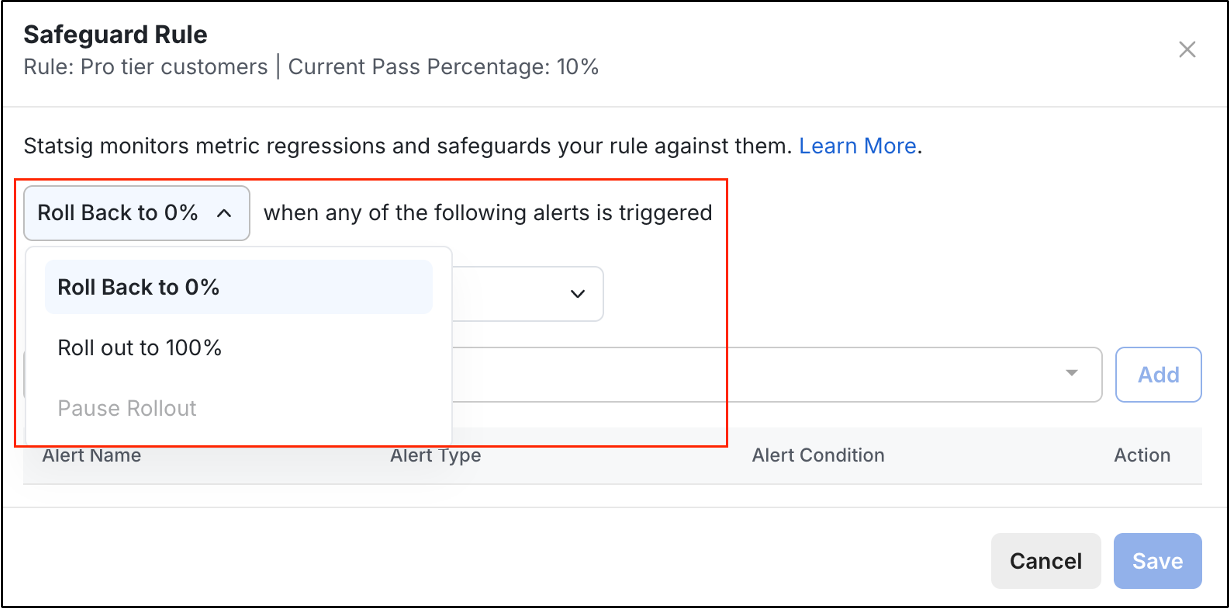
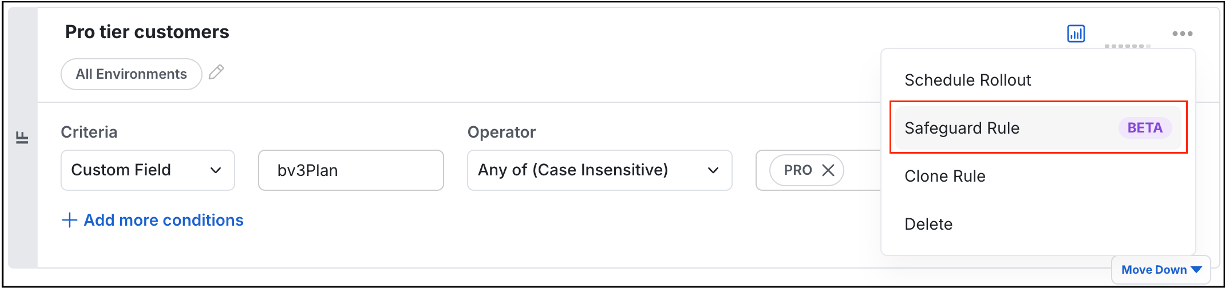 4. Choose the action to take when alerts fire:
* **Rollback to 0%** - Assign Default value to all users
* **Roll out to 100%** - Assign Pass value to all users
* **Pause Rollout** - Stop scheduled rollout progression (only available with active Schedule Rollout policy)
4. Choose the action to take when alerts fire:
* **Rollback to 0%** - Assign Default value to all users
* **Roll out to 100%** - Assign Pass value to all users
* **Pause Rollout** - Stop scheduled rollout progression (only available with active Schedule Rollout policy)
 5. (Optional) Set how long to monitor alerts for safeguarding the rule:
| Alert type | Evaluation period | Evaluation start time |
| ------------- | ----------------- | ----------------------------------------------- |
| Topline alert | Choose your own | Starts when the safeguard is created |
| Rollout alert | Fixed (90 days) | Starts whenever targeting rule's pass % changes |
5. (Optional) Set how long to monitor alerts for safeguarding the rule:
| Alert type | Evaluation period | Evaluation start time |
| ------------- | ----------------- | ----------------------------------------------- |
| Topline alert | Choose your own | Starts when the safeguard is created |
| Rollout alert | Fixed (90 days) | Starts whenever targeting rule's pass % changes |
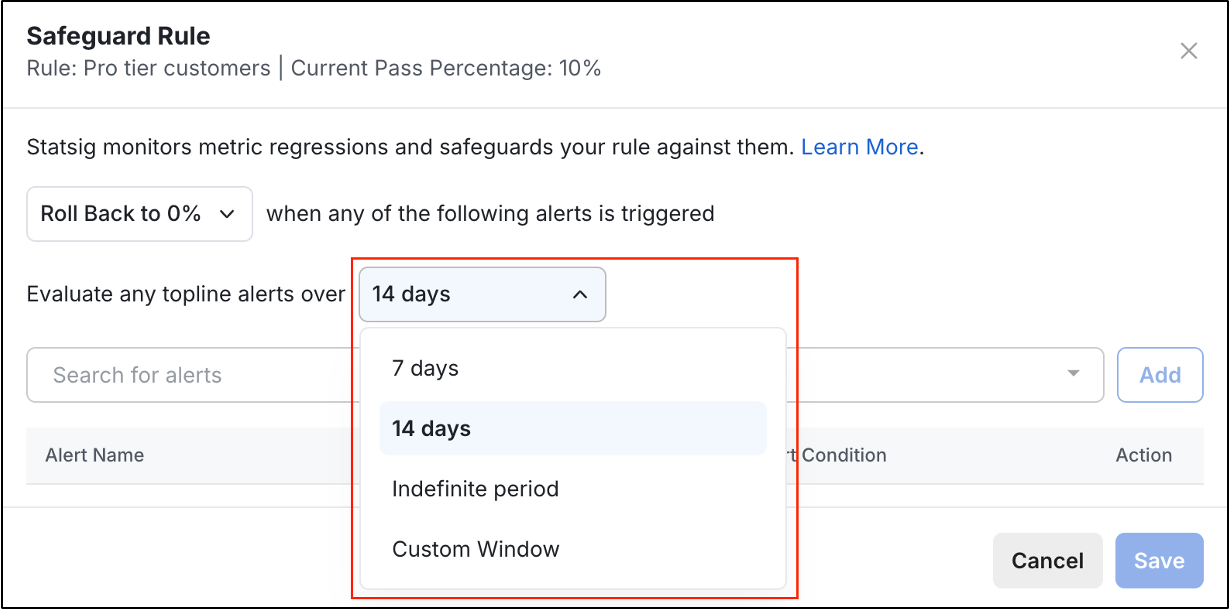 **Recommended:** Ideally you want to monitor topline alerts for crashes, errors, latency, etc. *for a few days* after a Feature Gate rollout to make sure things are stable. We recommend starting with a 14-day evaluation period.
6. Select one or more alerts to monitor:
* Rollout alerts - For feature-specific regression detection
* Topline alerts - For system-wide health monitoring
**Recommended:** Ideally you want to monitor topline alerts for crashes, errors, latency, etc. *for a few days* after a Feature Gate rollout to make sure things are stable. We recommend starting with a 14-day evaluation period.
6. Select one or more alerts to monitor:
* Rollout alerts - For feature-specific regression detection
* Topline alerts - For system-wide health monitoring
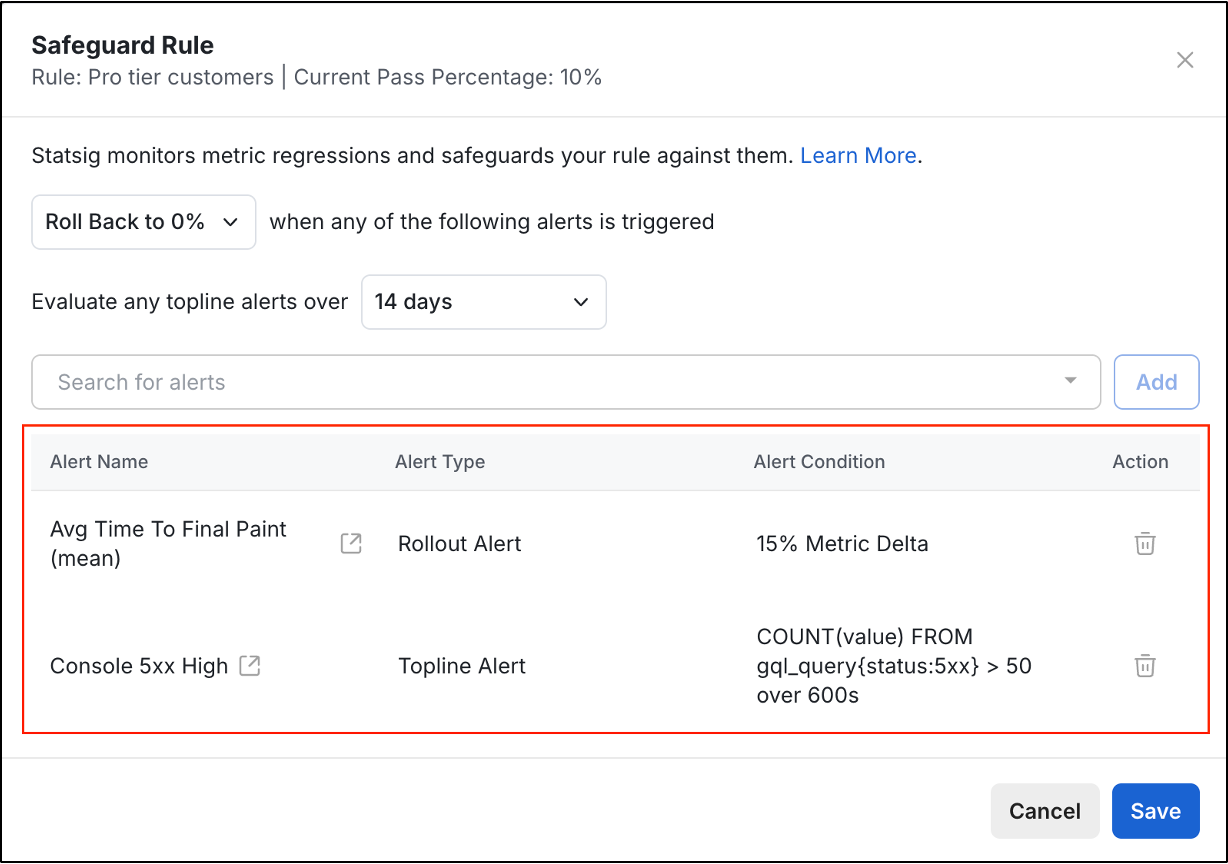 7. Click **Save**