> ## Documentation Index
> Fetch the complete documentation index at: https://statsig-4b2ff144-mintlify-java-core-statsig-options-migrati.mintlify.site/llms.txt
> Use this file to discover all available pages before exploring further.
# Custom DAU Metric Creation Guide
> Step-by-step guide to create custom Daily Active User (DAU) metrics tailored to your specific business needs.
# Custom DAU Metric Creation Guide
This guide will walk you through the steps to create a custom DAU metric. Follow
the instructions carefully to ensure successful creation of your metric.
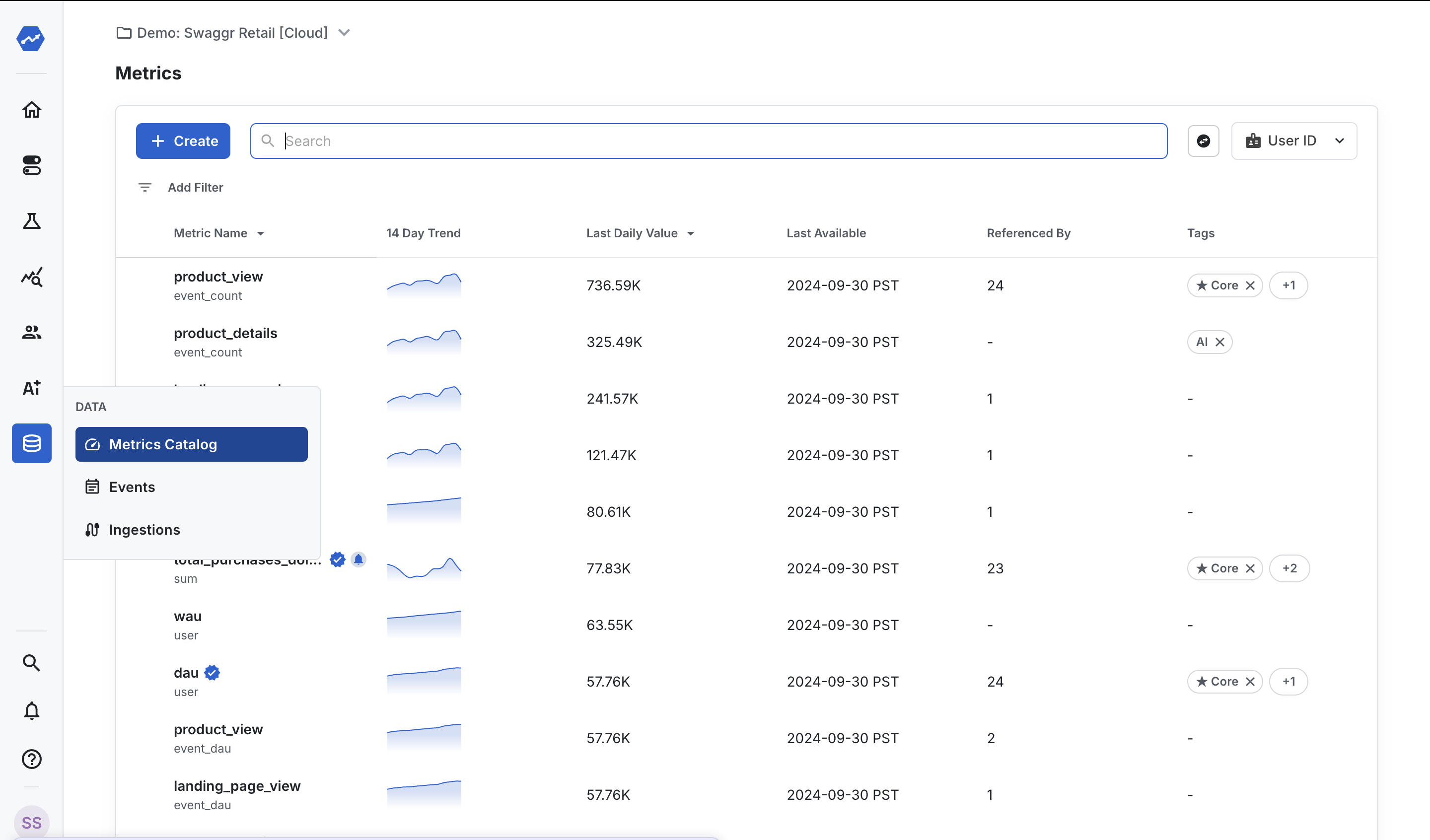
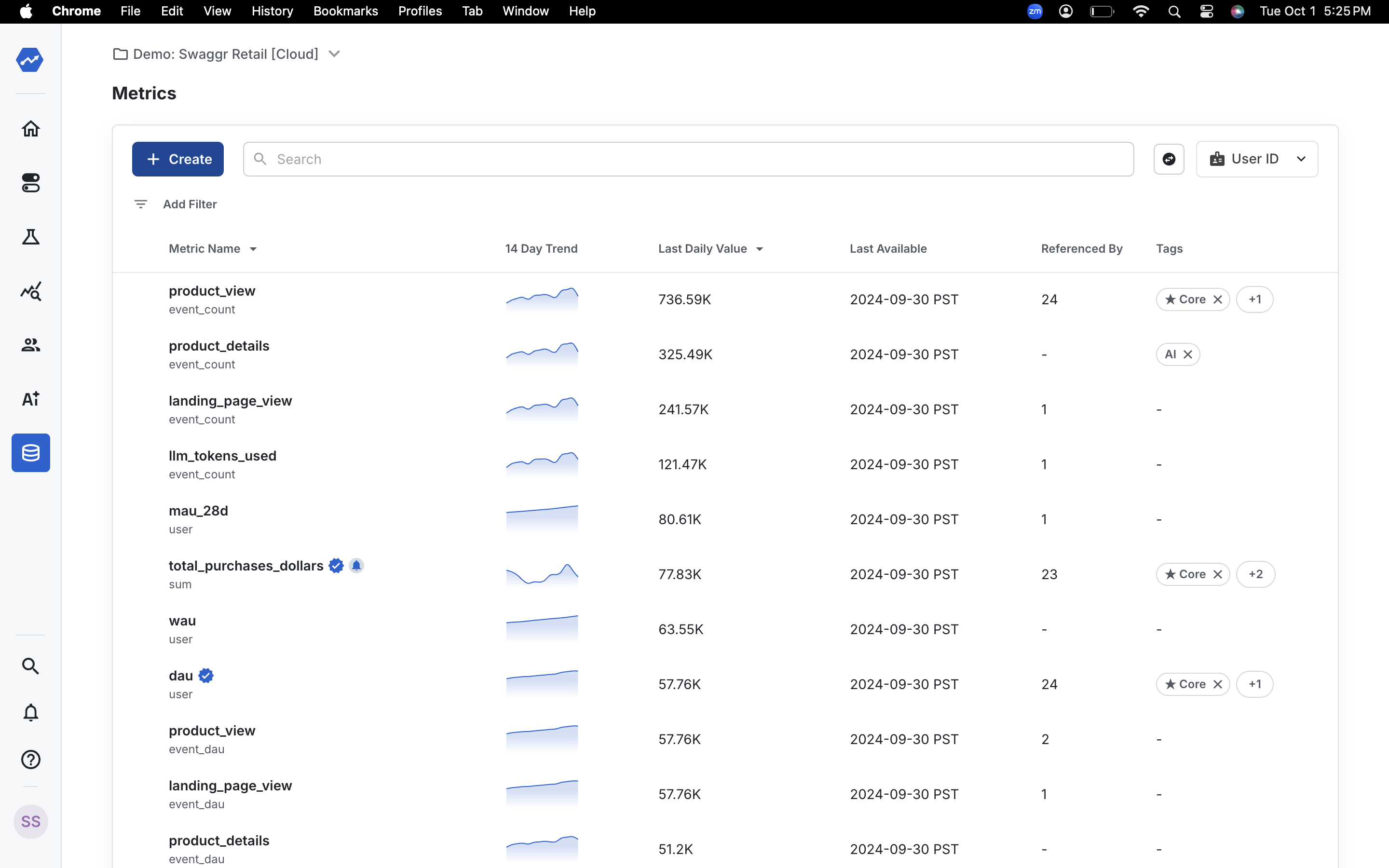
### **Step 1: Navigate to the Metrics Catalog**
To begin, go to the "Metrics Catalog" in the left navigation bar and click on
"Create" button.
 ### **Step 2: Name your metric**
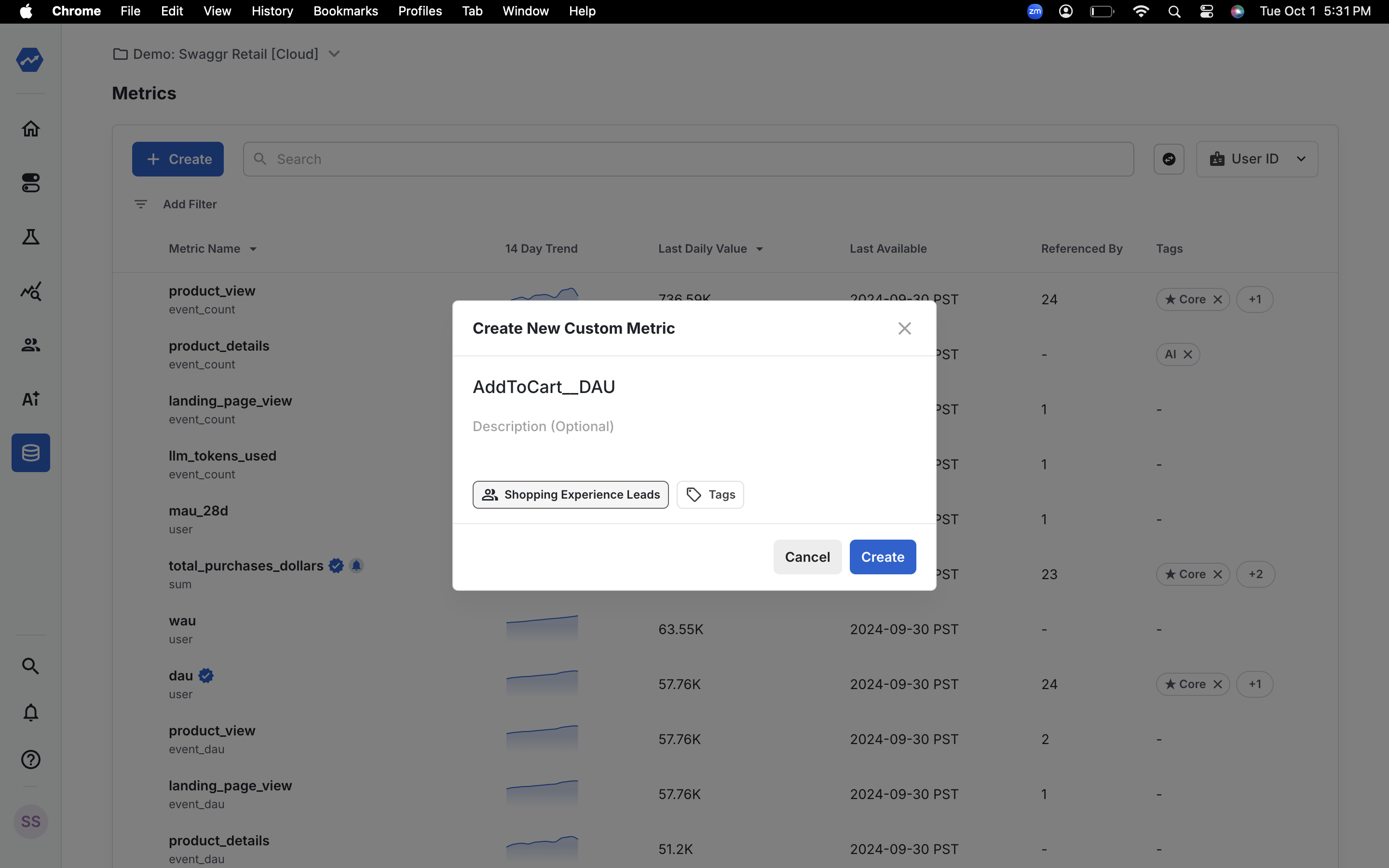
Name your metric. For example, I am naming it "Add to Cart DAU".
### **Step 2: Name your metric**
Name your metric. For example, I am naming it "Add to Cart DAU".
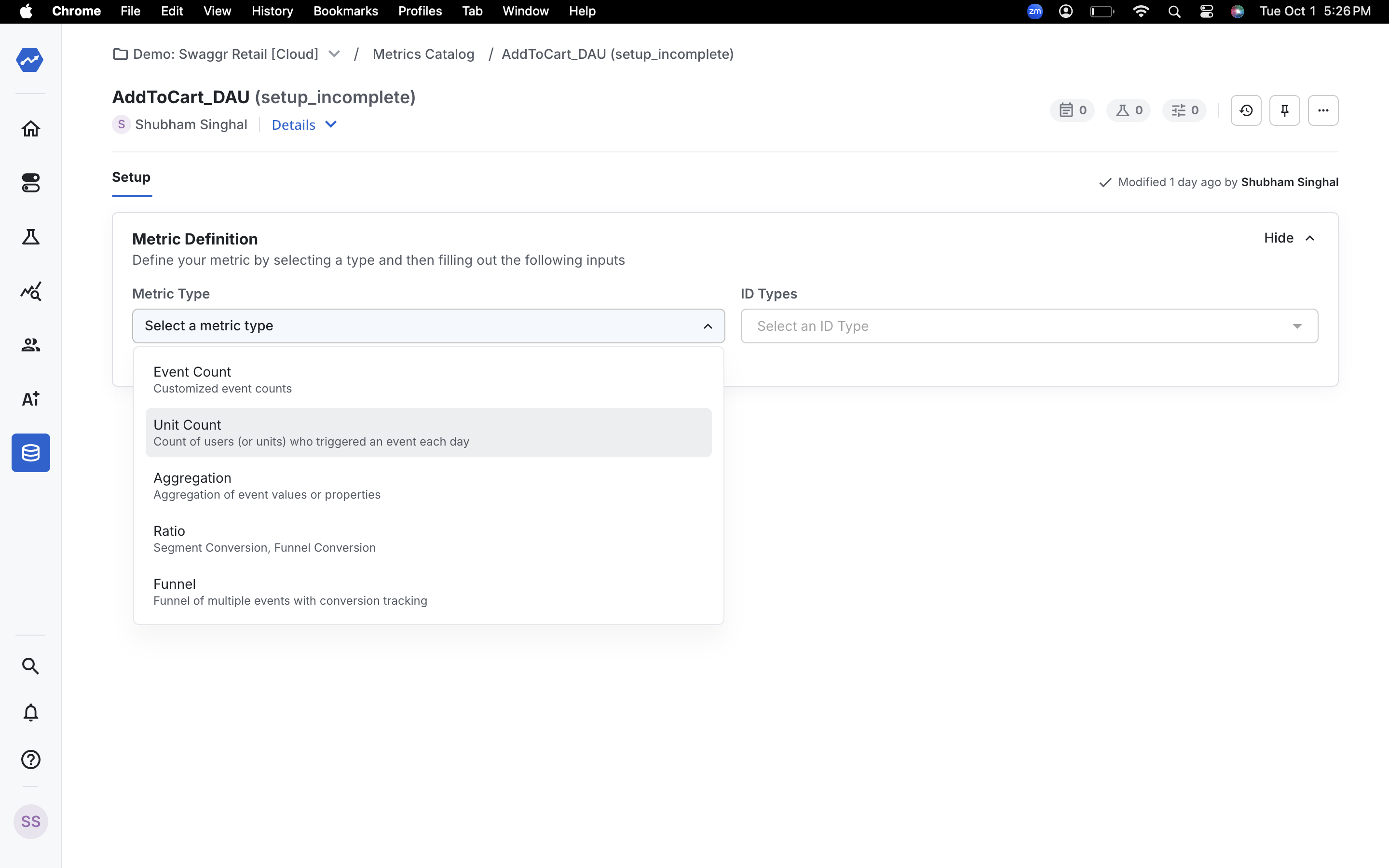
 ### **Step 3: Choose the metric type**
Since we want to create a DAU metric, choose the metric type as "Unit Count".
### **Step 3: Choose the metric type**
Since we want to create a DAU metric, choose the metric type as "Unit Count".
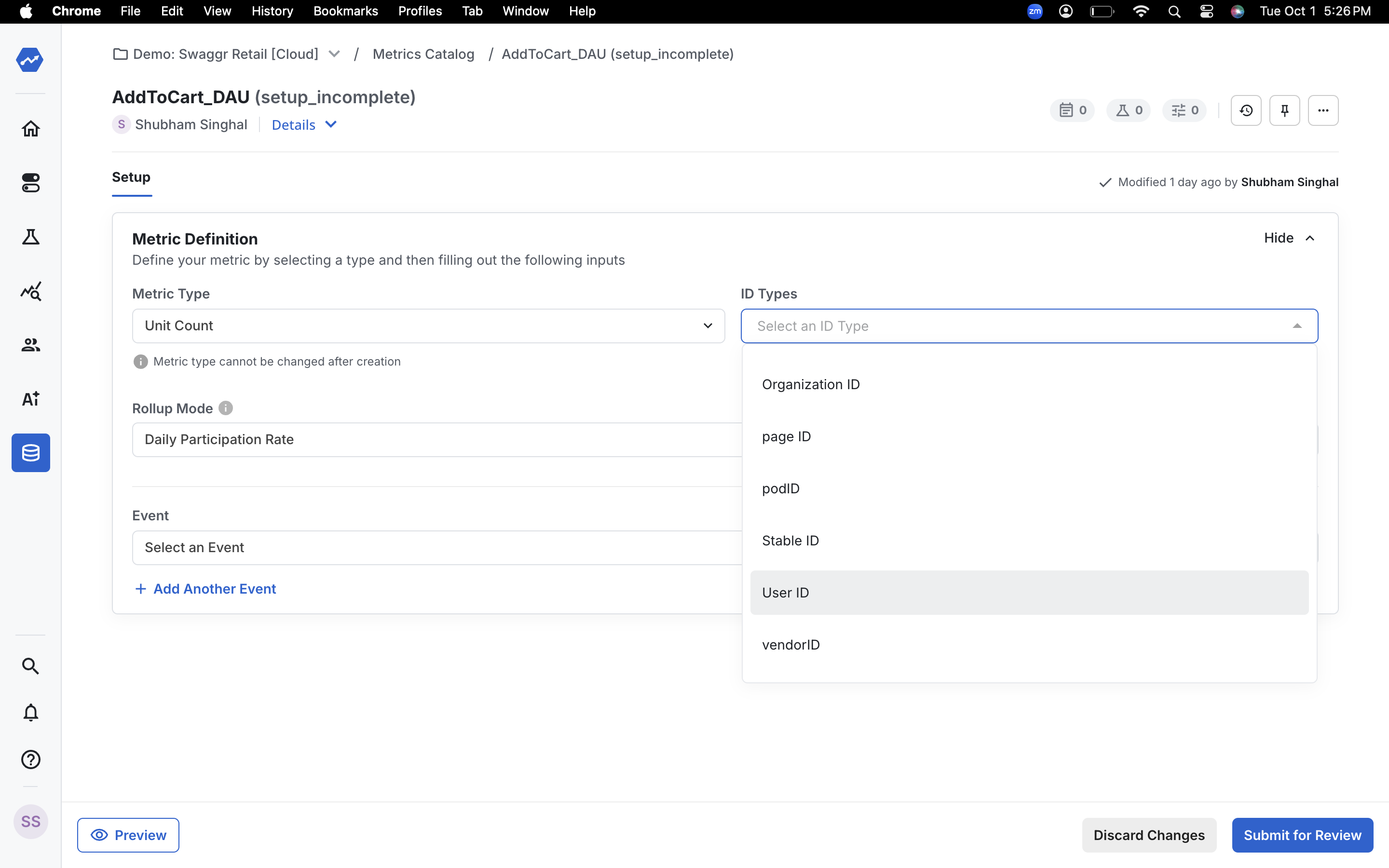
 ### **Step 4: Select the ID type**
Select the ID type you want to count. Here I am selecting "User ID" which it is the most common use-case for DAU metrics.
### **Step 4: Select the ID type**
Select the ID type you want to count. Here I am selecting "User ID" which it is the most common use-case for DAU metrics.
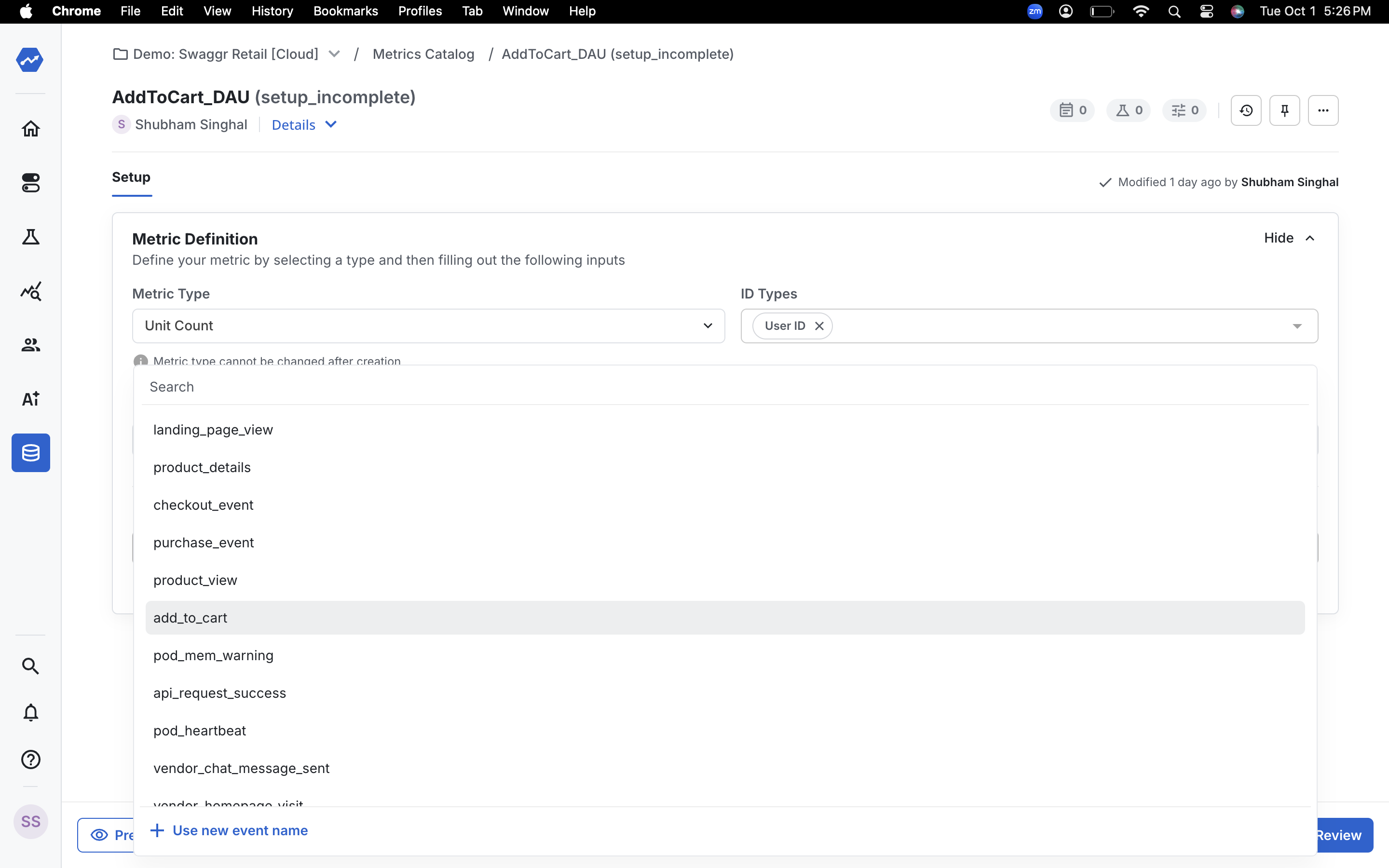
 ### **Step 5: Choose the event**
Next, choose the event that you want to use for your metric. In this case, I select the event "Add to Cart".
### **Step 5: Choose the event**
Next, choose the event that you want to use for your metric. In this case, I select the event "Add to Cart".
 ### **Step 6: Submit the metric**
Submit the metric and your custom DAU metric is now created!
### **Step 6: Submit the metric**
Submit the metric and your custom DAU metric is now created!